TouchGraph Navigator 2, Welcome!
Licensing and Support
Samples Licensing
Installation
System Requirements
Navigator Web Installation
Applet Launcher Page
TouchGraph Navigator Overview
Menus
File Menu
Export Data dialog
Export Image dialog
Add Search Entity dialog
Settings Menu
Edit Menu
View Menu
Tools Menu
Help Menu
Definitions
Navigator 2: New Features
Loading Wizard
Select Input
Excel
CSV / TSV
MCSV
Navigator DB API
NavigatorDbApi Script
MySQL
Data Types & Delimiters
Entities & Relations
Choose A Table
Edit Entity
Edit Relation
Dynamic Relations
Co-occurrences
Dynamic Attributes
Aliases
Settings
Names - Types / Attributes
Names - Entity Labels
Filter - Inclusion
Filter - Attribute Filters
Add Filter Dialog
Node - Colors
Node - Label / Image
Node - Halo Size / Shape
Node - Node Tags
Edge - Colors
Edge - Width / Pattern
Edge - Tags / Arrows
Graph Layout
Graph Panel
Nodes, Edges
Graph Interaction
Connected Components
Zooming, Spacing
Graph Toolbar
Color Chooser Dialog
Cluster Dialog and Algorithm
< Previous page Next page >

Color Chooser Dialog

Color Chooser Dialog
 
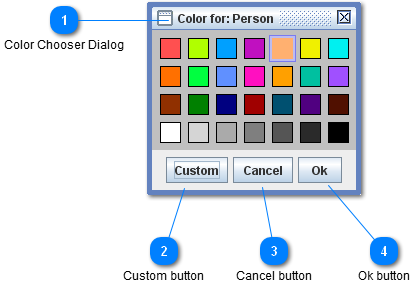
The Color Chooser Dialog provides a quick way to adjust the colors of nodes in the graph.  It can be shown by clicking the button in the graph toolbar.
 
Use the Node Appearance - Colors and Edge Appearance - Colors settings for fine grained control over graph colors.
 
1

Color Chooser Dialog


  • At least one node must be selected to use the dialog.  If multiple nodes are selected, the change in color will apply to all selected nodes.
  • The Color Dialog does not necessarily act on the selected node, but rather the attribute that the selected node is colored by.  For instance, if a "senators" entity is colored by "party" then changing the color of a senator will change the color of the party node, and all the senators nodes in that party.
  • If the selected node is colored by "cluster", then changing the color of the node will change the color of the cluster.  See also the cluster dialog.
   
[Top]
2

Custom button

 
The Custom button allows customizing the hue of the selected color.  Saving the project will save palette so that it is preserved next time you load the file.
 
[Top]
3

Cancel button


The Cancel button will undo the last color change while the color dialog is open, and close the dialog.
[Top]
4

Ok button


The Ok button closes the dialog.
 
[Top]